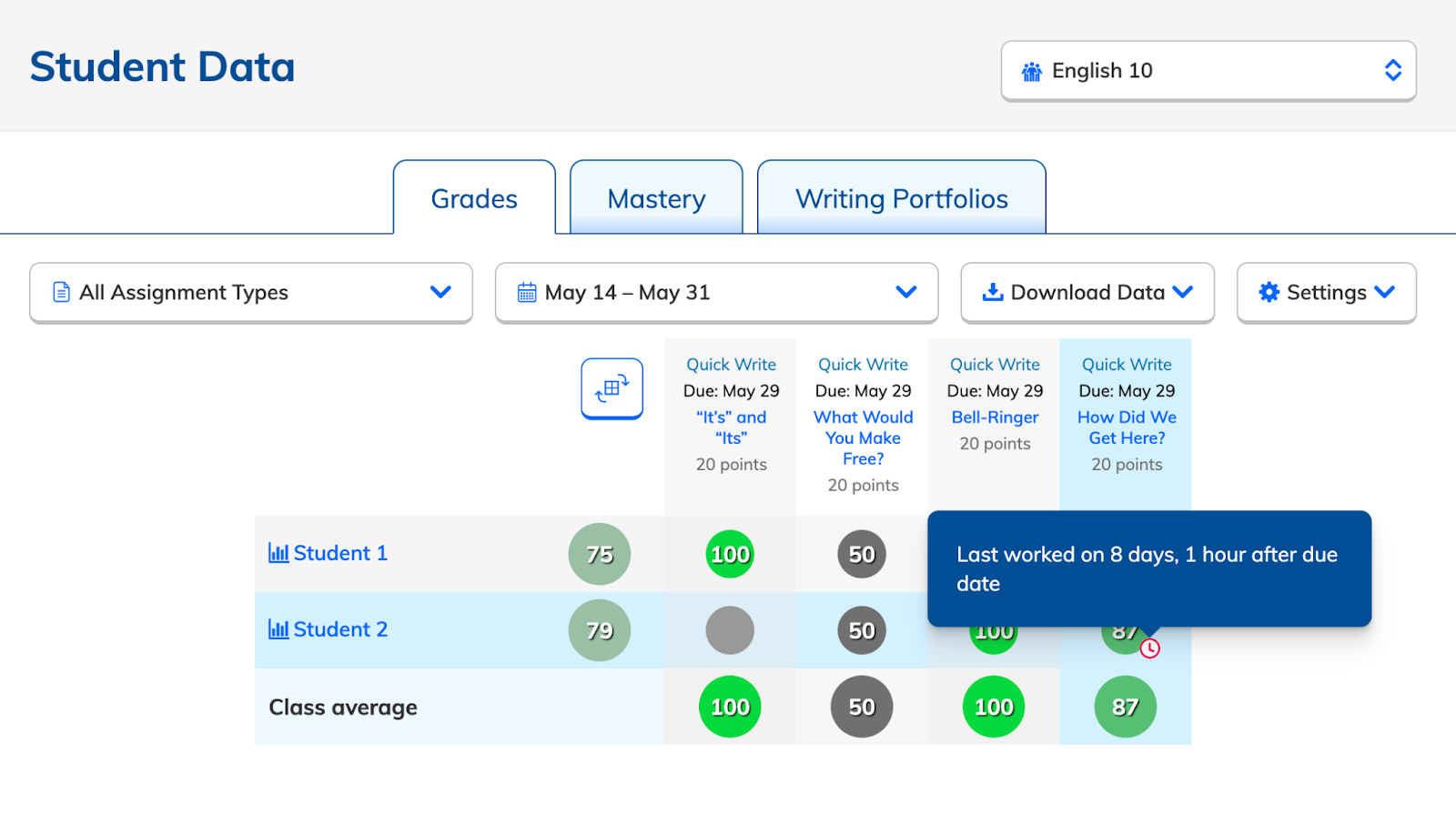
When you navigate to your Gradebook, you’ll have access to your students’ scores across all the assignments you’ve created this year. To access your Gradebook, you'll select Student Data at the top of your dashboard. There are several key features to help teachers navigate their scores in the gradebook. Check out each section below to learn about these features!
🍎 Looking for detailed results for a specific assignment or need to grade writing submissions? You can do this from the assignment's Results page!
Switch Gradebook Orientation
By selecting the table icon, you can toggle between seeing your students' names down the left-hand side of your gradebook and seeing them listed across the top.
Filter by Assignment Type
Looking for a specific assignment type? You can filter your gradebook to only display specific assignment types by selecting the All Assignment Types drop-down. Your gradebook will display all assignment types by default.
Sort Assignments by Date
By default, you'll see all assignments created for a class, but for a leaner gradebook view, you might choose to see only this week's or this month's assignments. You can select the date drop-down menu to adjust the dates you can see in the grade book. You can also pick a custom date range.
Download Gradebook Data
Use the Download Data drop-down to export your gradebook as an Excel or CSV file. You can then upload it to different programs or analyze scores outside of NoRedInk.
Display Scores as Percentages or Points
By default, your gradebook displays scores as percentages. You can adjust this by using the Settings drop-down and selecting the type of scoring you’d like to see.
View Late Submissions
If an assignment was worked on after the due date, a clock icon will appear next to the student's score icon. You can hover over the icon to view how long past the due date the assignment was submitted.
 Access Detailed Reports
You can select a student's name to view an individual report of that student's past work.
Selecting an assignment's title will bring you to the Results page, where you can view a detailed breakdown of your class's performance.
Access Data for Students Removed from the Class
If you've dropped or moved students from one class to another, you can also view their grades by toggling Show dropped students within the settings.
The class average will update to include the grades of the dropped students when this feature is on. These dropped students can also be included in a gradebook export.